ERTECH CCTV, will showcase their expanded range of Tiandy at Security TWENTY 18 London.
Set in the convenient location of the Park Inn Hotel at London Heathrow, the Conference will bring together top security industry speakers and is supported by a large exhibition of cutting-edge security products and services.
Confirmed speakers so far include Surveillance Camera Commissioner Tony Porter giving us an update on the National Strategy, Head of Security at Suntory Guy Mathias, Dave Humphries of the Security Industry Authority, cyber expert Mike Gillespie, lone worker specialist Rachel Griffin of the Suzy Lamplugh Trust and manufacturer updates from Hanwha, Seagate, Anixter and Hikvision. The conference will be chaired by ST regular Mike White. For more information click here:
Most importantly if you register in advance and are an installer, an end user, a consultant, or someone to do with private security, in the police or the armed forces, or a buyer of security services you will be able to attend the Conference for FREE. And entitled to a free breakfast bap or lunch or both if you plan to spend the whole day there We hope you will be able to join us! Register here:
Security Notification- Buffer Overflow Vulnerability in Some Hikvision IP Cameras
SN No. HSRC-201808-01
Edit: Hikvision Security Response Center (HSRC)
Initial Release Date: 2018-08-13
Update Date: 2018-08-23
Summary
A buffer overflow vulnerability in the web server of some Hikvision IP Cameras allows an attacker to send a specially crafted message to affected devices. Due to the insufficient input validation, successful exploit can corrupt memory and lead to arbitrary code execution or crash the process.
CVE ID
CVE-2018-6414
Scoring
CVSS v3 is adopted in this vulnerability scoring(http://www.first.org/cvss/specification-document)
Base score: 8.9 (AV:N/AC:H/PR:N/UI:N/S:C/C:H/I:L/A:H)
As you know, Tiandy is the Starlight Video Processing Technology Leader and Promoter in the world.
2015 – Tiandy is the 1st to release “Starlight” into surveillance market
2016 – Tiandy is the 1st to release “Super Starlight” based on Tiandy’s patent “TVP” Technology
2017 – Tiandy is the 1st to bulid “Starlight Products Family” include fixed lens/motorized IP camera and high-performance PTZ dome camera.
2018 – Now Tiandy is the 1st to release latest “Lite Super Starlight” series camera
What is “Lite Super Starlight” ?
Super Starlight “TVP” Patent Technology, 0.0008Lux
S+265 Patent Coding Technology, 1080P@800Kbps
Incredible Price
Imagine it, How much is a SUPER STARLIGHT camera ? How much is a camera with Sony starlight sensor, with Tiandy’s patent TVP technology, up to 0.0008Lux?
Answer is all this kind of camera in market more than 60USD, but now Tiandy release a cost-effective Super Starlight camera, 0.0008Lux, amazing night image quality, amazing price !
Night View by Iphone Night View by Tiandy Lite Super Starlight
Please check attached “Tiandy Lite Super Starlight Video Demo” and “Lite Super Starlight Introduction” , you will find out what I said. Or download from https://youtu.be/r-LNsBSLF-0
Welcome visit Tiandy website www.tiandy.com, participate in activities of “Global Starlight Night Test” get awards.
Contact us to get more information about “Lite Super Starlight”, you will be the 1st to release so amazing Super Starlight Products in market, Let’s Starlight it !
Hikvision, the world’s leading supplier of innovative video surveillance products and solutions, has launched a new addition to its PTZ DE series – the new mini PTZ (DS-2DE2A404W-DE3). This brings the pan, tilt, zoom functionality to a smaller camera, useful for applications where there’s less space available. In fact, it’s even smaller than a standard smart phone.
The camera uses a handy 2.5” lens with a 4x optical zoom and 16x digital zoom. For such a small camera, it packs a punch, with 2MP and 4MP models available and colour images in low-light scenarios, down to 0.005 lux. The IR model brings this capability down even further – right down to 0 lux.
Smart functions are also available – like Face Detection, Intrusion Detection, Line Crossing Detection, Region Entrance/Exit Detection and Unattended Baggage Detection. These give added value to any solution, allowing users to get even more out of their surveillance system.
Other features include: – 120 dB Wide Dynamic Range, 3D Digital Noise Reduction, Regional Exposure and Regional Focus – Up to 20m IR distance – IK10, IP66 – Supports H.265+/H.265 video compression.
The camera will appeal to installers due to its flexibility in smaller indoor projects, like smaller shops, office meeting rooms and hospital wards.
The latest-generation of SMB surveillance solutions support enhanced site security for end-users, while providing significant revenue opportunities for Hikvision resellers’ business.
Small and medium-sized businesses (SMBs) have many of the same surveillance and security requirements as larger organisations. They need to identify and react to perimeter breaches in real time, and they need to automate footage searches to save time for their security teams.
The challenge is, how can resellers provide small and medium-sized customers sophisticated and highly effective surveillance solutions at a price point that is appropriate for their business? And how can resellers grow their revenues and bottom line in the process?
Win-win surveillance solutions for resellers and their customers Hikvision is continuously innovating its product lines to deliver cost-effective, high quality surveillance solutions needed by SMBs. As a result, they can enjoy new levels of site security, while resellers can focus on growing their revenues.
One key technology that can help resellers achieve these goals is Hikvision AcuSense, which makes advanced video content analysis and deep learning capabilities available to SMBs for the first time. This technology gives SMBs a cost-effective way to protect their locations and assets, while helping resellers building a uniquely competitive go-to-market proposition.
The benefits of Hikvision AcuSense for SMB customers?
Paired with Hikvision cameras such as ColorVu cameras that provide superior video images even at night, the AcuSense deep learning algorithm helps SMB customers maximise security with efficient human and vehicle detection. This helps them react to security threats in real time, while significantly reducing false alarms, and associated personnel costs.
Hikvision AcuSense works by disregarding natural movements, such as rain or leaves, triggering alerts when vehicles or humans are detected by a camera or a backend NVR/DVR. With automated sound and light alarm functions available in certain models, AcuSense-enabled cameras also detect would-be intruders before a security breach occurs.
With Hikvision AcuSense, SMB customers also get a “quick target search” feature that allows security teams to find footage quickly in the event of a security incident. This saves many hours for teams who would otherwise search for footage manually.
Hikvision AcuSense SMB solutions There are very different requirements in the SMB market and AcuSense technology provides significant benefits in a wide range of user scenarios:
Residential estates
Hikvision AcuSense cameras can be deployed at perimeter fences to detect break-ins and support protection of residents and their belongings. AcuSense vehicle detection can also be used to ensure that non-parking areas such as emergency exits and pedestrians are not blocked with illegal parking.
Small office buildings and factories
Hikvision AcuSense can help security personnel to detect and prevent perimeter break-ins and to react in real time to minimise the risk of losses. AcuSense cameras and NVRs/DVRs can also be used to monitor and protect warehouses and office areas where valuable assets are located or stored.
Retail stores
With human detection, Hikvision AcuSense can help small stores to monitor key areas such as cashier area, staff only area or a stock room, for example. Store owners would also be able to view the footage on their mobile phone and find out if there is any employee theft happening when they’re off the premises. Vehicle detection helps owners to ensure on-site parking within the store territory is allowed.
Hotels
Hikvision AcuSense can help owners at small hotels to be alerted and take necessary actions when people or vehicles enter the hotel territory. AcuSense cameras and NVRs can help ensure the safety of the hotel environment, and protect guests and their property.
With Hikvision AcuSense technology, SMB customers can achieve new levels of perimeter and site security, while reducing manual interventions due to false alarms and enabling major time and cost savings. At the same time, AcuSense provides a major opportunity for resellers, helping them to deliver advanced surveillance solutions that were previously out of reach for their SMB customers.
An IP camera can have many advantages when compared to a traditional analog camera, in this article you will understand the advantages of using this technology in CCTV projects.
The first thing we must understand is that the principles of light and imaging are universal and do not change when you use an IP camera or analogue one, so let’s talk about other things other than light principles.
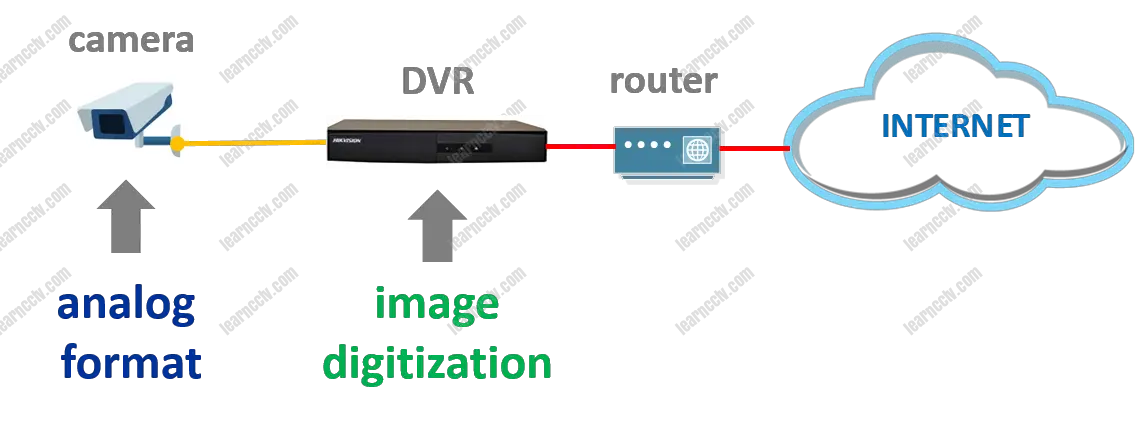
The basic difference between IPs and analog CCTV cameras resides in the image scanning, meaning, the transition from light to the digital format that can be easily stored and transmitted over a network.
Analog camera digitization
In an analog camera, the scan occurs only on the DVR (recorder), the camera sends the image in analog format through coaxial cables to the DVR where it is scanned and stored and a hard drive.
So, this is just an overview about analog camera digitization, let’s move now to the IP camera world and understand how this process works.
IP camera digitization
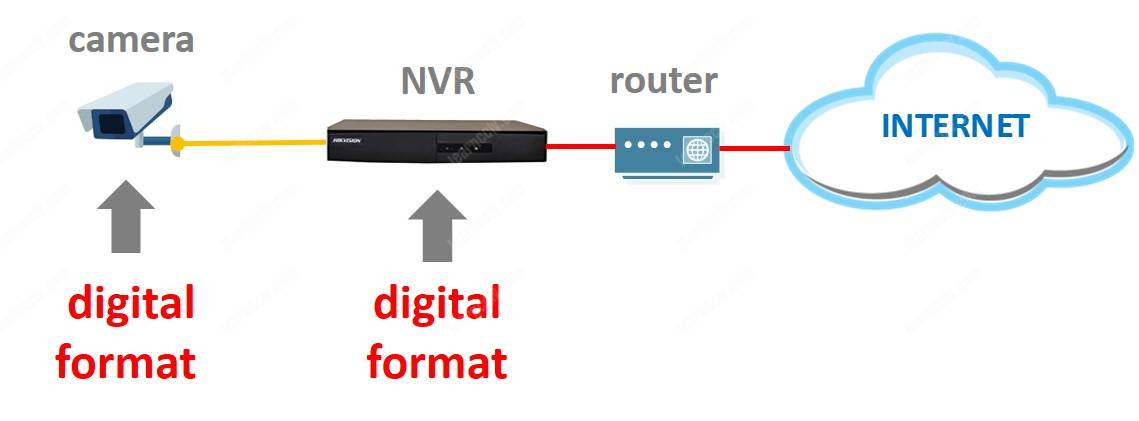
In an IP camera, the scanning process occurs directly on the camera, even before it is sent to a recorder.
When the first IP camera was invented, an internal circuit called encoder was used to transform electrical signals from the image sensor (CCD) into digital signals, but with technology evolution, new sensors such as CMOS became able to do direct scanning, without the need for this internal encoder.
Due to the fact that this scan is done in the IP camera itself, it becomes a stand-alone device and can use intelligence capabilities.
But this is just the tip of the Iceberg, there are numerous differences between the two technologies. Let’s dive into the details.
Internal components of an IP camera
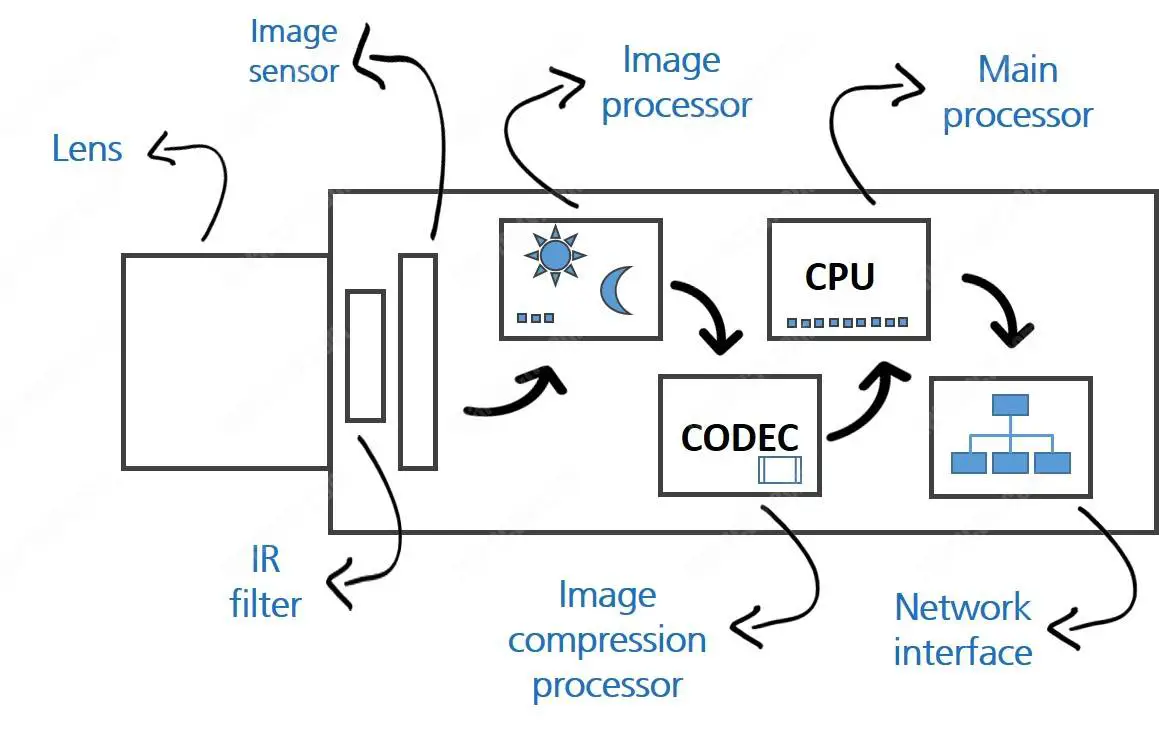
Most IP cameras on the market have a sensor called CMOS that converts received light into digital signals,
After the digital conversion, the internal processor called DSP (Digital Signal Processor), considered the brain of the camera, processes the images and makes improvements before moving to the final circuit that will process and send the images over the network.
With those internal components, an IP camera is an independent device that can work by itself, and just send video directly to the network.
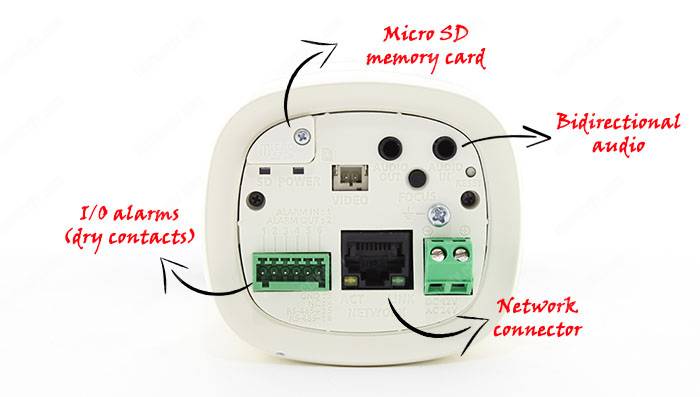
Audio Inputs / Outputs, Alarm and SD Card
On the back of the camera we can see a micro SD card slot, audio input and output that allows us to connect an external microphone and a speaker, as well as a network connector (which also serves to send power), And finally the input and output for alarms that allows interacting with external devices such as sound, light or alarm panels.
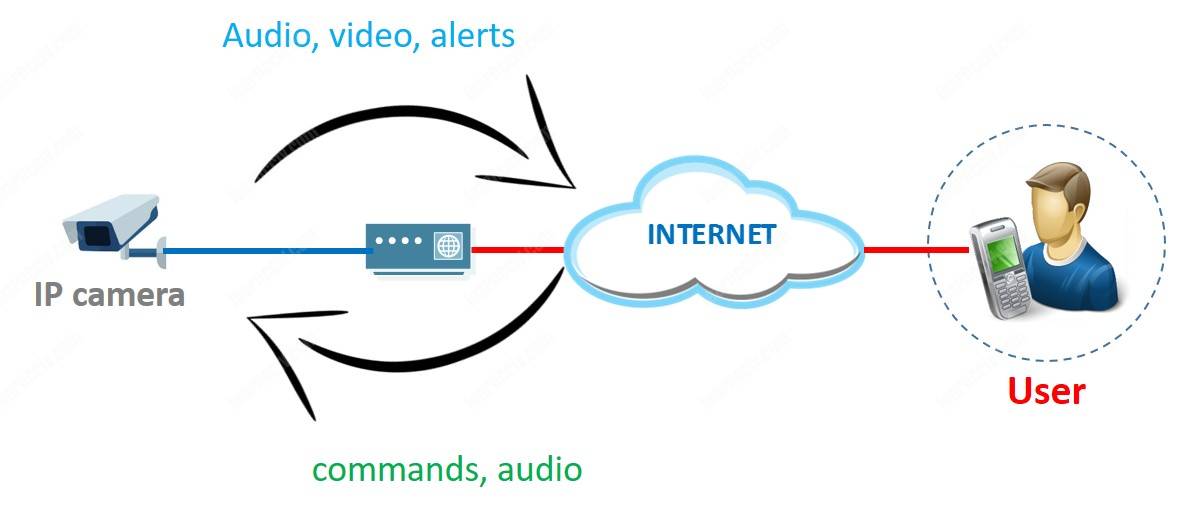
Note that the advantages are huge when compared to traditional analog cameras, because with IP cameras it is possible to send and receive audio and video already in digital format, besides having access to the camera menu and sending and receiving remote commands, all by simply connecting a Network UTP cable.
When a camera identifies a moving object for example it can send information to trigger the alarm output, ie a dry contact (NO/NC) is triggered and can signalize to an external device.
Power supply redundancy
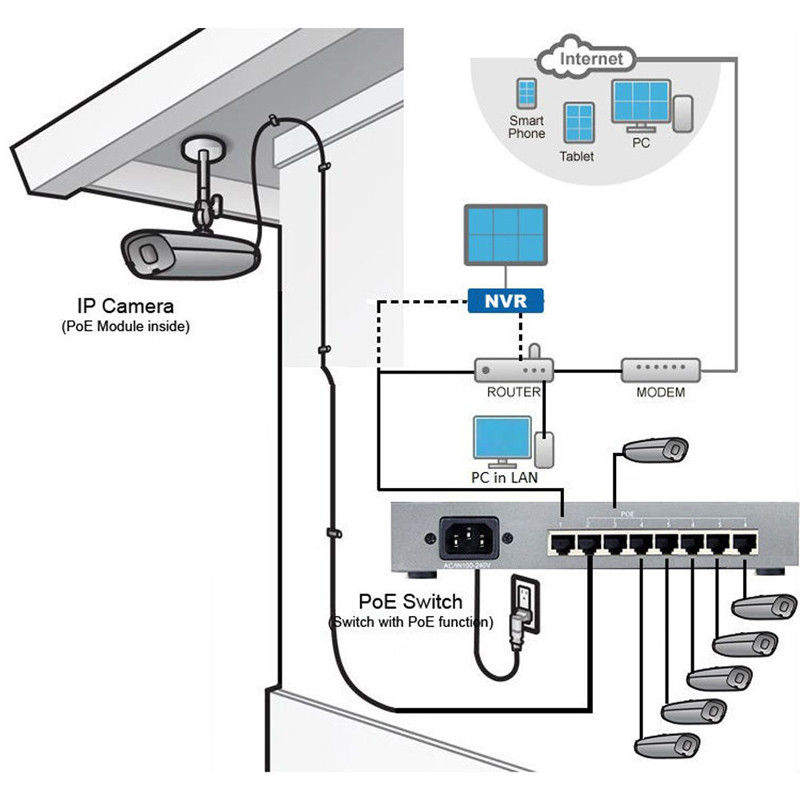
There is the possibility of powering the camera using a traditional 12VDC or 24 VAC source via the standard connector, or through the network cable, using PoE power.
You can then use both types of power in parallel and allow the camera to continue to function even when the network cable is cut off or disconnected from the switch that sends power.
Independence of the image recorder
IP cameras are independent of the recorder, meaning they are autonomous and can record their own images on a memory card and communicate directly over the network.
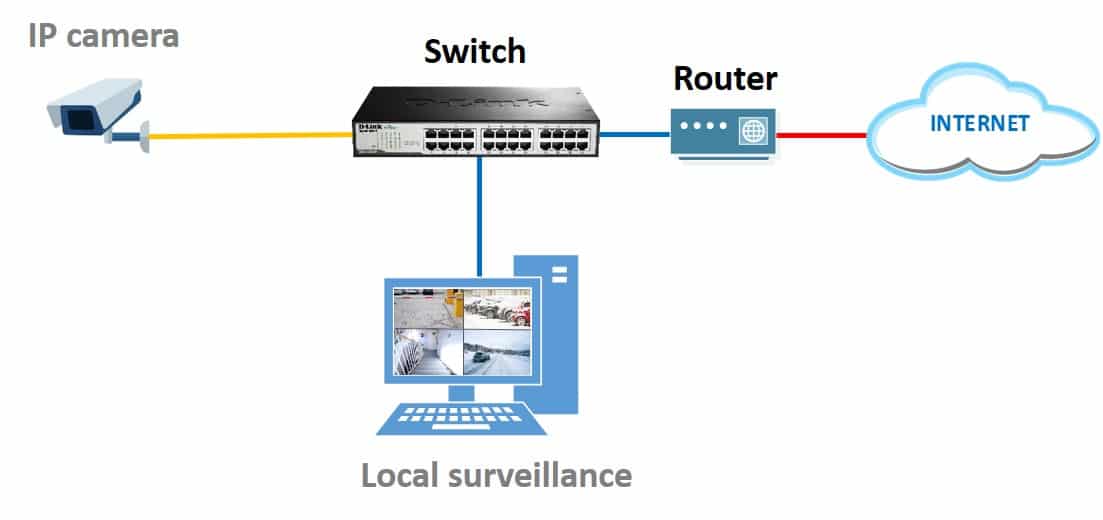
These types of CCTV cameras can be connected directly to a switch or router through a network port, and thus become devices that can be programmed to send videos to a local or remote recorder to any part of the world, (when they are connected to Internet)
Even without an IP recorder (NVR) in the network, the camera can send videos to a monitoring center or to the Internet.
IP cameras work with two-way communication
This means that it is possible to send commands to the cameras and receive information from them through the network, it is possible for example to adjust the aperture and focus of the lenses (models with varifocal motorized lenses)
From your computer, tablet or mobile phone you can have direct access to the camera, even if there is no recorder (NVR) in the network, you can listen to what is going on in the environment through a microphone built into the camera, or external microphone
You can also connect a speaker to the camera or use a model that already has a built-in speaker. This allows the user to send audio and communicate with those who are near the camera or to activate some pre-existing audio that is in the device’s memory.
IP wireless camera
There are camera models used in residential environments that already have wireless (wi-fi) capabilities with built-in microphone and speaker that allow easy communication and monitoring
Because they are independent devices with their own processors and network resources, IP cameras can do intelligent video analysis to detect possible changes to the images.
High resolution images
Some manufacturers already have high-resolution camera models, such as this the 12MP IP camera, manufactured by Tiandy.
These cameras have much higher resolutions than analog cameras, even the most modern analog models with HD-TVI, HD-CVI, AHD and SDI technologies do not even have resolutions higher than 5MP.
IP camera network traffic security
Analog system security
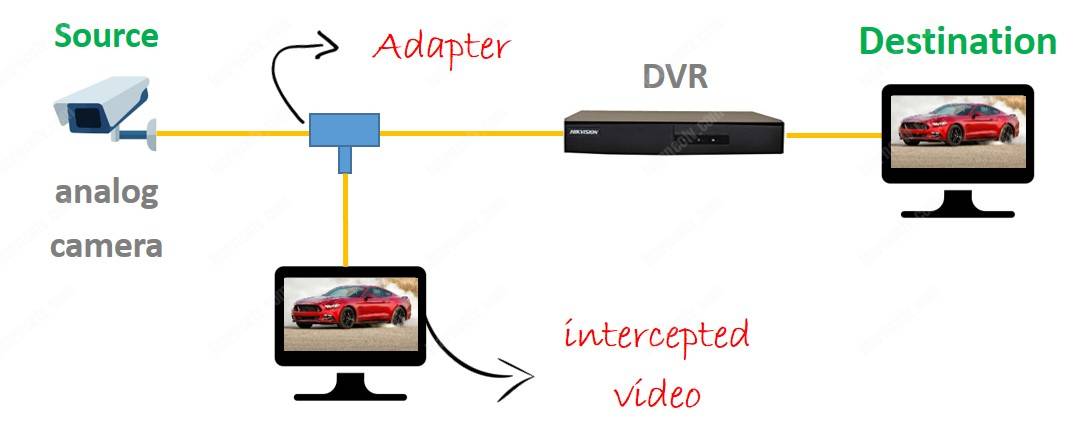
In an installation with analog cameras it is possible to intercept the signals easily, simply cut the coaxial cable and connect a monitor or a recorder (DVR) to have full access to the images.
IP system security
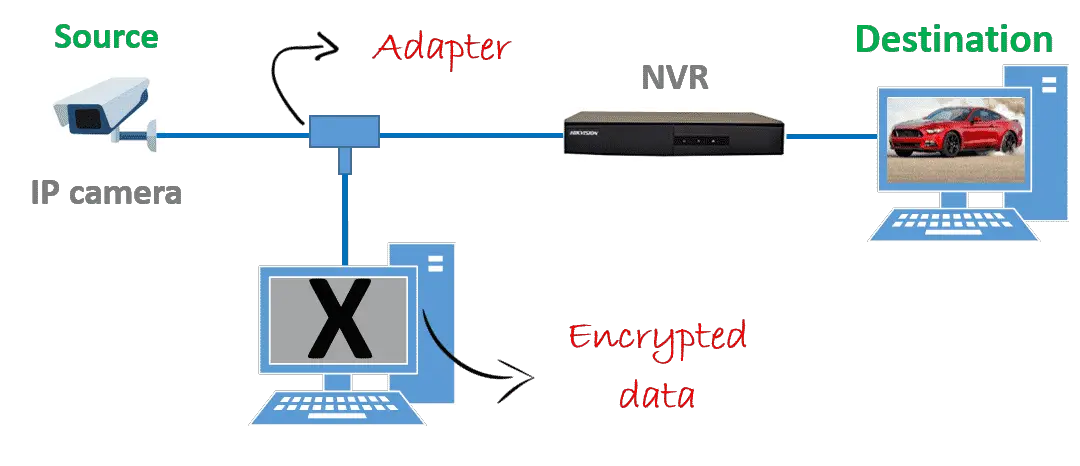
When using IP systems, you can encrypt the data between the camera and its destination (equivalent to an Internet banking transaction) which makes data interception totally useless since the data can only be decrypted at its final destination.
Obviously there is a need to use cameras, recorders and software suitable for encryption, but it is something that makes a big difference for serious customers who need to secure the data.
Versatile and scalable system
In analog systems you get stuck with the monitoring software provided by the manufacturer because the software that controls the DVR is very specific, in most cases you can not use third party software that has other features.
In IP systems it is quite different, with total freedom of choice, because it is possible to use IP cameras of different brands with software developed by several manufacturers in the market.
See below an example of different manufacturers of IP cameras
This allows us to choose the best IP cameras that meet customer needs and use them with the best software that has the features needed for the CCTV project.
We can choose the software according to its advantages, such as speed, ease of operation, intelligent video analysis, scalability, compatibility, etc.
IP cameras have high resolution, are independent and capable of doing intelligent video analysis, and communicate with different types of software, they can be used in wireless networks and allow the use of redundant power.
Large projects use thousands of IP cameras because of their ease of integration into the networks and traffic of images to any part of the planet and still make redundant recording.
Do you still use analog cameras? Today, Analog HD cameras are very cost-effective, no matter they are AHD, HDCVI, HDTVI cameras from different manufacturers, in this article, we are pleased to share a tutorial that guides you to install analog HD cameras. This tutorial originally come from user manual content of Qsee cameras. Please keep in mind that AHD cameras only work with AHD DVR, likewise, HDCVI cameras work with HDCVI DVR and HDTVI cameras work with HD-TVI DVR. All these analog HD products based on different technology can’t be compatible each other. If you are upgrading from a standard Analog system, you will be able to use the existing BNC power/video cable but you must to replace both the recorder and the cameras with Analog HD technology equipment.
Where is the right place for camera installation?
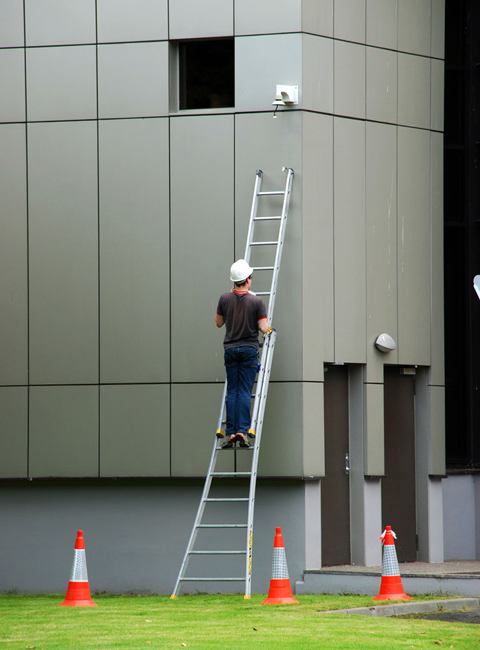
Don’t be in a hurry to install the camera. Conducting a survey to check where the camera should be installed. Before installing your cameras, it’s very important to select a proper installation site not only for good field of view, but also for other considerations.
When analog video signal transmits over coaxial cable, the further the camera is from the DVR or monitor, the higher the chances of signal degradation. Typically, shielded Siamese coaxial cable (RG59) provides greater distances compared with regular 75Ohm coaxial cable provides acceptable signal at distances up to 60 metre (200′). Furthermore, the camera’s power supply should be located as near to the camera as possible when the distance exceeds 200′ as the power level will drop over extended distances resulting in a decrease in video quality.
Since electrical interference will degrade the quality of video signal. The camera should not be installed in places near high voltage wires or other sources of electrical interference. To prevent damage and vandalism, the camera should be installed more than 2.5 metre out of reach height.
Although outdoor camera can withstand extreme weather conditions, you should not place the camera where rain or snow will hit the lens directly nor should the camera be placed so that the sun or strong light shines directly into the lens. Your camera is weatherproof, but don’t submerge it in water. Ensure that all power and video connections are not directly exposed to water and are protected from the elements.
Window will cause a reflection that will obscure events. Likewise, the camera’s infrared illuminators will reflect off the glass and shine into the lens, thus degrading the image. So, do not place camera behind a window.
Connecting cameras to DVR and power supply
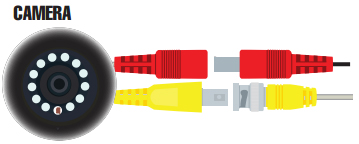
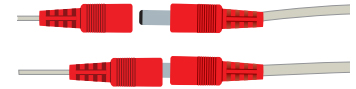
Step 1: connect the BNC and power leads from the camera to the matching connectors on one end of the power and video cable. When connecting the power and video cable between the camera and the DVR, the “male” power end (red plug) connects to the matching power lead on the camera.
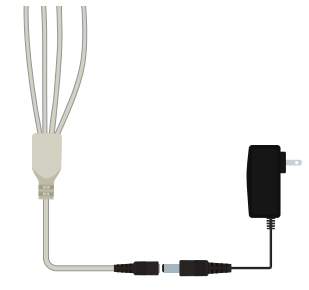
Step 2: For multi-camera packs, connect the power connector on the other end of the cable to the power splitter. For single camera, connect the power lead into the power adapter itself. In this case, you can skip to step 4.
Step 3: Plug the power splitter cable into the camera power adapter. Do not plug the adapter into an outlet at this time.
If you use multiple cameras, the included power adapter is designed to provide enough voltage to operate multiple cameras. Connecting a single camera to the adapter can cause the damage of that camera.
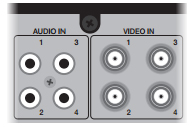
Step 4: Connect the BNC connector on the other end of the power and video cable to a Video in port on the back of DVR.
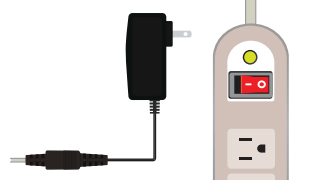
Step 5: Plug the power adapter into a surge protector. When selecting a surge protector, it’s highly recommended to use one that is UL-1449 rated, for a clamping voltage of 330 or lower, a joule rating of at least 400 and a response time of 10 nanoseconds or less.
Troubleshooting of camera’s installation
Lines in the video images
Check the cable. If you connect a camera that is working to the cable of the camera that has the lines and it too shows lines, replace the cable. If you are in an area with a lot of electrical interference, switch to a shielded cable such as RG-59.
No video from camera
Check all connections and make sure that camera is connected to proper power supply. Check to see that the camera is receiving power by cupping hand over lens. You should see a faint red glow from the LEDs. Check camera on known functioning cable to determine if issue lies with camera or cable.
To check to see if the camera is receiving power, cover the light sensor with your finger. This causes the camera to activate night vision. If the camera is receiving power, the night vision LED’s in the camera will glow red, and you may hear a clicking sound in some cameras that have an Auto Mechanical IR Cut Filter.
Dark video image
Some cameras feature an infrared cut filter to improve daytime video images. This can sometimes become stuck. Place a hand over the lens for 10 seconds to trigger night vision mode. You may hear a soft click as the filter resets.
Upside down video image
Change the orientation or position of your camera to correct. Or, use the video flip option in your DVR’s Camera Settings menu.
Sun induced burn out
Direct sunlight entering your camera’s lens will cause awful video degradation includes blurriness, changes in contrast, and eventually complete blackout. These don’t always need to come right from the sun. Highly reflective surfaces are just as detrimental. Wide Dynamic Range (WDR) is not a solution and will not save your camera.
Video disturbances, ghosting, or colored lines appearing
If your power distribution box or power adapter is improperly grounded, your cameras will have all sorts of video disturbances, ghosting, or colored lines appearing. Simply using another different power source with another electrical circuit can help rule out this problem. We have seen cases where electrical circuits in the whole house were improperly done by the electrician, resulting in no resolution of the issue.
Hikvision, the world’s leading supplier of innovative video surveillance products and solutions, has launched a new two-wire design Video Intercom. With a healthy list of features, this Video Intercom System provides the latest in residential security with high-definition imaging and convenient installation for the consumer market.
Hikvision’s advanced Two-Wire Video Intercom includes both indoor and outdoor video intercom stations along with a distributor. When replacing outdated or non-functioning equipment, this hi-tech visual communication system uses existing wiring for simple, speedy, and economic installation. This advanced design features vivid video synchronisation signals and exceeds power and audio transmission expectations.
Whether replacing an aging system or simply installing a new one, Hikvision’s two-wire video intercom brings harmony and high video quality to consumer contexts. Users will enjoy in-home security with the latest features, such as:
• 2 MP Fisheye Cameras with excellent night imaging and self-adapting IR light supplement • Noise Suppression & Echo Cancellation for optimum voice audio • The mobile Hik-Connect App so you can identify visitors and even unlock doors when away from home
“Hikvision is continuously looking for innovative ways to develop our products and solutions for better user experience. Apart from the professional video surveillance industry, Hikvision has also been committed to providing more services and technologies for end-users in community and home security,” said Keen Yao, VP of Hikvision’s International Business Centre.
Hikvision, the world’s leading supplier of innovative video surveillance products and solutions, has launched a range of groundbreaking face recognition terminals. Hikvision’s face recognition terminals are embedded with deep-learning algorithms for access control and office scenarios for improving building operations, workforce management and safety operations.
All three of these models are easy to install and use. The wall-mounted terminal is well-suited for quick access at an entrance. The base & wall-mounted terminal can be mounted on convenient vertical surfaces or on the front desk. The face recognition component is designed for use in conjunction with access turnstiles. If needed, this model can be rotated horizontally upon installation for capturing facial images at the most effective angle.
Various models and types are available with a wide variety of front-end or back-end combinations to meet a multitude of scenarios and environments. Hikvision’s face recognition terminals support 1:1 or 1:N matching modes, authentication via Mifare cards, and TCP/IP or RS-485 connectivity.
Accurate and Fast Face Recognition Hikvision has embedded Deep-Learning algorithms into its face recognition terminals, providing fewer transmission delays and a reduced load on backend components. As a result, the terminals have a high success rate – the face-capture rate can hit 99% accuracy at less than 0.5 seconds.
During rush hours, access turnstiles equipped with Hikvision’s face recognition terminals can respond in less than a half-second, passing up to 40 persons per minute.
DS-K5603-Z with access turnstile
Hikvision’s face recognition terminals apply to a wide variety of scenarios and environments and can be highly personalized. Multiple authentication modes are available: face images, swiping ID card and comparing images, custom modes, and more. Applications range from commercial real estate, government agencies, small to very large businesses or factories, just to name a few.Continue Shopping
Does Customer have Broadband – Is Broadband Cable or DSL • If Cable it is likely that ISP provides a router most often it is a wireless router. It is likely that the router authenticates with ISP based upon its MAC address so changing router may cause customer to lose ability to connect to internet. • Make sure customer has username and password information to log into router. Often found on a sticker on side of device.
KNOW BEFORE YOU GO (2)
If DSL does customer know PPoE authentication information. ( From ISP and cannot be guessed) – DSL often provides a Modem/Router where device only has a single RJ-45 port. – If Customer has login information for Modem/Router user can add a switch. – IF ISP does not allow user configuration of device than device must be put into “Bridge” mode and a second router must be added so configuration can take place.
KNOW BEFORE YOU GO (3)
In case of DSL and Cable there must be an open port for NVR/DVR/Camera to connect. • YOU MUST have a PC with you to configure router. This CANNOT be done via the DVR/NVR. • You must have enough Ethernet cables to connect Devices simultaneously.
KNOW BEFORE YOU GO (4)
• Know in advance how many ports need to be forwarded. – Some Devices only require one port such as the http port. Other devices require http and media port. Others can require http, media/rtsp and server ports. – Know if ports can be changed on CCTV device or if they are fixed. – Know if Router supports External/Public ports to be different from Internal/Private ports
Understand Basics Of Computer Addressing and Subnets
• TCP/IPv4 are still most common used. – All address have been allocated but because of heavy use of private subnets most ISPs are still providing a v4 address. • TCP/IPv6 provides enough address for every star in the universe to have 100 address. • Understand difference between a Public and Private address.
Understand Basics Of Computer Addressing and Subnets (2)
• Private address such as 192.xxx.xxx.xxx or 10.xxx.xxx.xxx can only be seen by devices who are part of the same network. Address of this type can only be seen when user is part of INTRAnet or LAN. • Public address such as 68.88.xxx.xxx can be seen from anywhere in the World (thus the term World Wide Web) and are part of INTERnet or WAN.
Understand Basics Of Computer Addressing and Subnets (3)
If Your IP camera has the IP address of 192.0.0.64 and you computer has the address of 192.168.1.101 you are not going to be able to view a live image. • Likewise if your DVR is plugged into the router and has the address of 192.168.1.50 and your laptop is connected via a wireless connection and has the address of 192.168.2.100 you cannot see the images from the DVR. It is not uncommon for the wireless subnet to be different than the wired.
DETERMINE IP ADDRESS OF COMPUTER
• With Command Box open type command “IPCONFIG” which stands for IP configuration.
Fastest way is by using “Command Prompt” – Windows XP go to START, click “run” type cmd or command and press enter – Widows 7/8 type “Command Prompt” into search window
DETERMINE IP ADDRESS OF COMPUTER (2)
• Note that it shows that the wired Ethernet connection shows “Media Disconnect” – If you are using a wired connection and this message is displayed check cable – This message may also result if you are plugged into a switch and no router is available – If possible always use a wired Ethernet connection as wireless can add variables (like a different IP subnet than the wired connections) that must be accounted for when troubleshooting
DETERMINE IP ADDRESS OF COMPUTER (3)
• Wireless connection shows TCP/IPv4 address of: 192.169.1.102 with a default gateway of 192.168.1.1 • Subnet mask will be 255.255.255.0 in 99% of the cases when IP address is 192.xxx.xxx.xxx as it is standard subnet mask for this subnet (Class C type) • The Gateway address is the address of the router where the port forwarding must take place.
Warning!
• For port forward to work you must be using router that is connected to the World Wide Web. • Look for the WAN/Internet/Public address of router and make sure it is not an 192.xxx.xxx.xxx or 10.xxx.xxx.xxx address. If it has one of these private address for its Internet address there is another device on site doing the routing. You may therefore need to forward the desired ports in one router to the IP address of the second router to which the CCTV device is connected and then again in that router to the CCTV device.
Warning!
Configure Router (1)
• Open Browser (ie works more times than not though you can use Google/Firefox etc.) • In URL bar type http:// and the gateway address. (in example it is 192.168.1.1)
Configure Router
• Most of the time a “challenge screen” will appear requiring you to enter user name and password. Some AT&T routers do not ask for username and password until an attempt is made to make a change.
Configure Router (2)
• Where you go next can vary greatly. Some routers put port forwarding under “Applications and Gaming”. Others under Advanced Options/Pin Holes or Advanced Options/Port Forwarding. Refer to Router user Manual
Configure Router (3)
• This shows using external (Public) ports that are different than the Internal (Private) Port. User on local network does not need to put :8008 at end of IP address in previous slide.
Configure Router (4)
• Some Routers have security features which will prevent viewing of video from outside network. Linksys/Cisco for instance require this change within Security Settings
Configure Router (5)
• The CCTV device to which you are forwarding needs to have a static address. You cannot have DHCP enabled on device. • DHCP (Dynamic Host Communications Protocol) means the device is “set to obtain IP address automatically (computers are set this way by default). • Which address is assign to which device is dependent which device boots faster. It is very likely that device will a different address causing ports to be forwarded to wrong device.
Trouble Shooting
• If you can connect to the DVR/NVR/IP Camera across the network but do not get video than one of the ports may not be forwarded correctly. • It may be necessary to reboot the device in order for network changes (like changing the RTSP port) to take affect
Trouble Shooting (2)
• If device can be seen locally but not remotely port may be block by ISP or Cellular provider. AT&T for instance frequently blocks ports below 1000 and in some areas below 2000. Making the RTSP port and HTTP port higher than 2000 may resolve problem. • Forwarding a port does not “open” that port for remote viewing if ISP or Cellular company blocks it on their side.
Verify Success
• To see if the port forward is successful attempt to use the public address to see the CCTV device. – Sites such as www.canyouseeme.org – www.whatismyip.com – www.speedtest.net – www.portforward.com display the public address being broadcast.
Verify Success
• Sites like Can You See me Can also help test if port is visible to outside world.
CONGRATULATIONS YOU HAVE DONE IT!!
• Remember if you are using WiFi at the site you need to use the LAN or local address • If your phone is on 3/4G you can view using the Public address • Call someone away from the site and have them attempt to log in. • Set up two log ins on customers phone one for local and one for away. • Remember that if http port other than 80 is forwarded it must be tacked onto the end of the public address: 76.11.151.30:8000
QUESTIONS?
• Do not waste time setting up a port forward it should take 10 minutes or less if all information is known. • Consider paying an IT specialist if you are unsure of situation • Consider using a third party port forwarding configuration software. (Portforward.com has some manufactures integrated and for $30 they will do it for you. HikVision is integrated). • When in doubt, Reach out!
ADDITIONAL INFORMATION DDNS
• DDNS stands for Dynamic Domain Name Service. – For 99% of home owners and 80+% of businesses the Public IP address they have is Dynamic, not static, and changes on a regular basis. How long you keep an Public address is know as the “lease period” The length of the lease can usually be obtained from the ISP. Some leases can be a few hours long and others may last until such time as the equipment is powered cycled even if that is months.
ADDITIONAL INFORMATION DDNS (2)
• Many routers support services that will allow a user to create a name that will be associated with a changing Public IP address. Most (DLink has their own server) use third part servers such as No-IP.com or DYNDNS.org which require users to go to those sites and create user accounts which are then added to the router configuration.
ADDITIONAL INFORMATION DDNS (3)
This router supports DynDNS.org which is free and TZO.com which cost ~$30/ year Free is nice but since no one is making money uptime is not guaranteed.
ADDITIONAL INFORMATION DDNS (4)
Many CCTV manufactures have their own DDNS servers. Large companies like HikVision usually have better uptime records than those that rely upon others.
ADDITIONAL INFORMATION DDNS (4)
• Create an account that is easy to remember • Know correct path to find the server you created like Hik-online.com/mydvr • The username and password is information used to create DDNS account is not the same user name used to log into DVR Menu. • Each IP camera can have a separate DDNS account.
PORTFORWARD.com
Portforward.com contains guides to hundreds and hundreds of routers.
PORTFORWARD.com (2)
Click on first letter of router to jump to that section of alphabetical list
PORTFORWARD.com (3)
Once Router Model is found click on Default Guide and follow instructions. You will need to close the commerial that appears between this screen and the information.
PORTFORWARD.com (4)
Some Devices have been submitted for inclusion in list of items supported by PortForward.com. For a price the website guarantees that they can do the port forwarding for you. Usually around $30. If you want to do it yourself they will tell you the ports that this device commonly needs to function and how to forward these ports on the selected router.





 Step 5: Plug the power adapter into a surge protector. When selecting a surge protector, it’s highly recommended to use one that is UL-1449 rated, for a clamping voltage of 330 or lower, a joule rating of at least 400 and a response time of 10 nanoseconds or less.